How to Make a Sub to Unlock Link (Step-by-Step Guide)
A complete walkthrough for creating a sub to unlock link that sends viewers to your YouTube channel before they get your download.
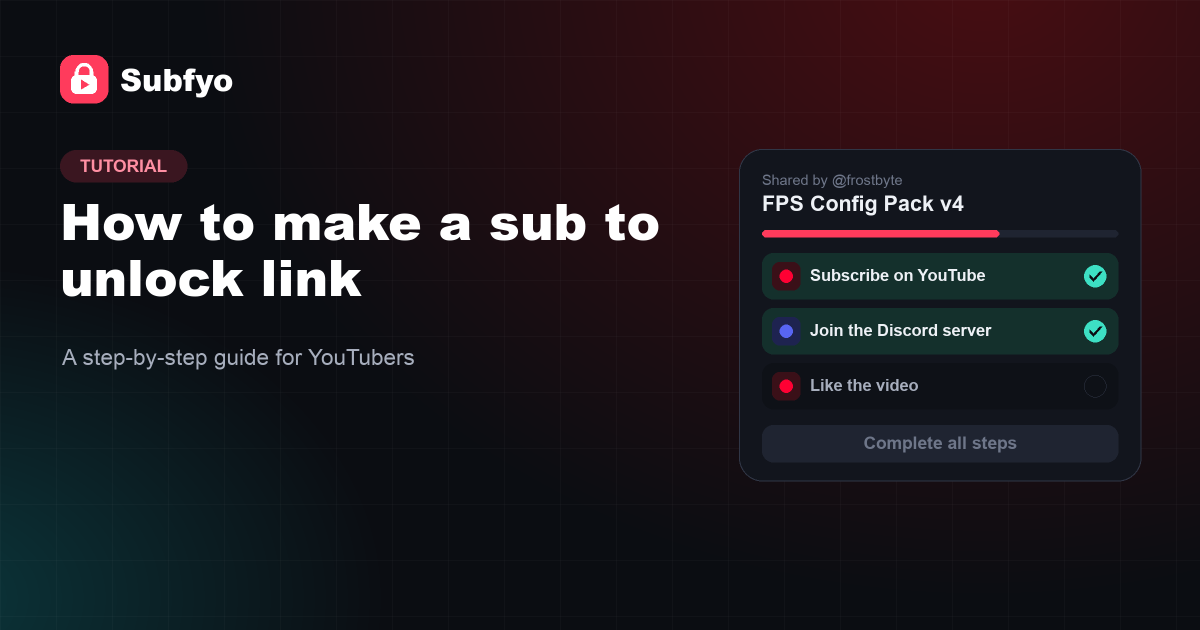
If you have ever seen a YouTube video description that says "download link below, subscribe to unlock," you have seen a sub to unlock link. It's one of the simplest ways to turn people who already want your work into subscribers, and it takes about two minutes to set up. This guide walks you through the process step by step, then covers the details that separate a high-converting locker from one that people abandon.
What is a sub to unlock link?
A sub to unlock link (sometimes written sub2unlock or sub4unlock) is a short URL that leads to an unlock page instead of directly to your file. The page lists one or more actions, such as subscribing to your channel or joining your Discord, and only reveals the real download link after those steps are complete.
The idea is a fair trade. You spend hours making a preset pack, a script or a map; your viewer spends ten seconds subscribing. Done well, it builds your channel without annoying the people who support you.
What you need before you start
- The content you want to share. A download link (Google Drive, Mega, MediaFire, Dropbox, GitHub, your website), or the text itself if it's a script, key or set of instructions.
- The links for your tasks. Your YouTube channel URL (the one with your @handle), the video you want liked, your Discord invite, and so on.
- A free Subfyo account. You can sign up with Google, Discord or email.
Step 1: Create your locker
Open your dashboard and click New locker. Give it a specific title. "FPS Config Pack v4 (Valorant)" works far better than "Download". Visitors see the title first, and a clear title reassures them they're in the right place.
Next, choose what you're locking:
- Link if you're sharing a file hosted somewhere else. Paste the full URL starting with https://.
- Text / Code if you're sharing a script, command, key or written instructions. Paste it directly; indentation is kept exactly and visitors get a one-click copy button.
Step 2: Add your tasks
Pick between one and five tasks. For a classic sub to unlock link, use:
- YouTube – Subscribe with your channel URL, for example https://www.youtube.com/@yourchannel
- YouTube – Like video with the URL of the video where you shared the link
Visitors complete tasks in the order you set, so put the most important one first. If you also run a community, a Discord – Join server step is a great second or third task. You can drag tasks to reorder them and add a custom button label if you want to say something like "Subscribe for weekly packs".
Tip: Two or three tasks is the sweet spot. Each extra step loses some visitors, so save five-step lockers for your biggest releases.
Step 3: Use the extra options (optional)
Under Extra options you can add a short note to visitors (great for requirements or version info), set an expiry date for limited drops, cap the number of unlocks for beta keys, or protect the locker with a password. Most lockers don't need any of these. Use them when they solve a real problem.
Step 4: Share the link
Click Create locker. You'll immediately get a short link and a QR code. Some good places to put it:
- The first lines of your video description, so it's visible without clicking "more"
- A pinned comment under the video
- Your Discord announcements channel
- Your bio on X, TikTok or Instagram
- On screen during a stream or at the end of a video, using the QR code
What your viewers will see
When someone opens your link, they see a clean card with your title, a short explanation and the list of tasks. They click the first task, which opens your channel in a new tab, subscribe, and come back. After a few seconds the next step unlocks. Once every step is done, the Unlock content button lights up and reveals your download.
If someone closes the tab immediately and returns, the step fails and they're asked to try again. Subfyo doesn't log into YouTube to check (no locker can do that without asking visitors for account access), but the timers make skipping steps more effort than simply completing them.
How to get a higher unlock rate
Be upfront in your video
Say it out loud: "The download is in the description. It's free; just subscribe and like to unlock it." When viewers know what to expect, they're far more likely to finish.
Keep the content worth it
The unlock page is a promise. If people complete the tasks and get a broken link or an outdated file, they won't trust your next locker. Edit your locker whenever you publish a new version; the short link stays the same.
Watch your drop-off chart
Your link's stats page shows how many visitors completed each step. If a lot of people stop at a particular task, try moving it later, replacing it, or removing it.
Don't overdo it
One locker per video is plenty. If every link in your description is locked, viewers get tired quickly.
Common questions
Is it free?
Yes. Creating lockers on Subfyo is free.
Can people bypass the tasks?
Your content is encrypted and only sent to the browser after the steps are completed on our server, so it can't be pulled from the page source. Task timers stop most attempts to rush through.
Does it work on phones?
Yes. The unlock page is designed for mobile first, including the YouTube and Discord in-app browsers where most of your visitors will open the link.
Wrapping up
A sub to unlock link is one of the fastest wins available to a growing channel: you're already giving something away, so you might as well let it grow your audience. Create a locker, add two tasks, share it in your next video description, and check your stats a week later. You'll see exactly how many new fans it brought in.
Keep reading
How to Share Roblox, FiveM and Minecraft Scripts with a Code Locker
Paste bins get scraped and download sites get flagged. A code locker gives script creators a cleaner way to share and grow.
How to Grow Your YouTube Channel with Locked Downloads
Downloads are one of the strongest reasons people subscribe. Here is how to use a link locker without annoying your audience.